Set default permissions

On this page
A default permission is held by everyone in a class without a grant of their own. Use defaults for what every member of a team should be able to do, and grant the rest person by person. Defaults apply to the app you selected, Preview or Production.
-
Open the project, choose Users and pick Preview or Production.
-
Choose Permission settings at the top right of the panel. The dialog describes who holds each permission without a grant, and whether its grants are bound to one organization.
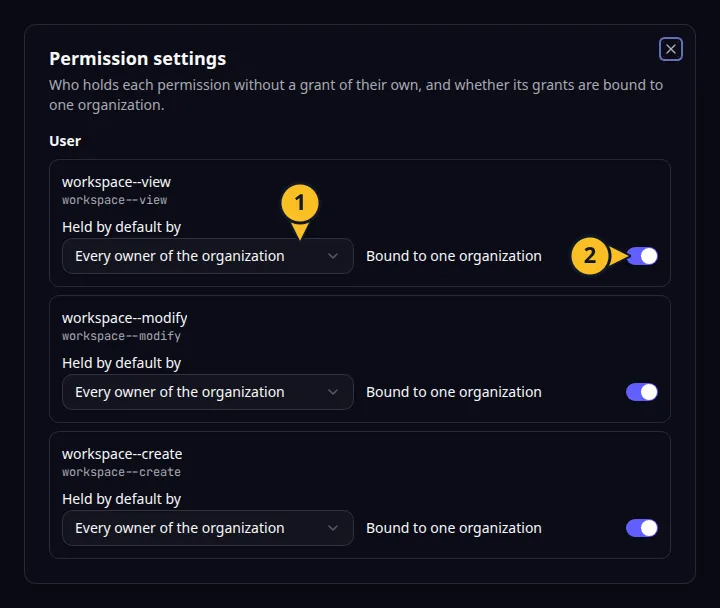
Permission settings: 1, Held by default by; 2, Bound to one organization. -
Find the permission. In Held by default by, choose one of:
- Nobody
- Every signed-in user
- Every member of the organization
- Every owner of the organization
-
If the app uses organizations, switch Bound to one organization on for a permission that should apply only inside the organization where it is granted. Leave it off to make the permission work everywhere.
-
Close the dialog and open a person’s Permissions to check the result. The permission now carries the “By default” badge.
Only the classes that fit a permission are offered. Everyone signed in needs a permission that is not bound to an organization. Members and owners need an organization-bound one. A permission that belongs to the platform cannot be changed here, and a project without configurable permissions shows “This project declares no permissions you can configure.”
A default can be restricted for one person in their own Permissions dialog, so you do not need a group for a single exception.
If a change is refused, see Troubleshoot access problems. Back to the section overview.
Application example
Category: Project and task management. Example: Task Grove, a task board for a small team. Let every member of the team organization view tasks by default, and hold task approval for owners.