Grant and restrict permissions

On this page
A permission is one thing a person may do in your app. The Permissions dialog shows every permission the app declares for one person, why they hold it, and lets you grant or restrict it.
-
In the Users tab, choose the shield in the person’s row. The Permissions dialog opens.
-
Choose a tab for the area: User, Operator, Admin or General. General holds permissions that belong to no area. A tab appears only when the app has permissions in that area.
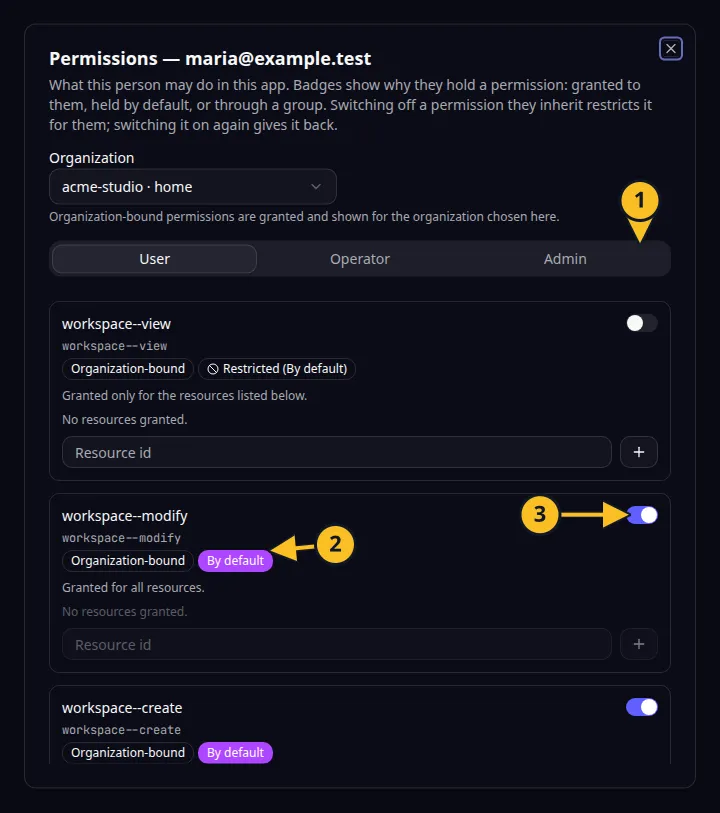
Permissions dialog: 1, area tabs; 2, By default badge; 3, permission switch. -
Switch a permission on to grant it. For a permission that applies to individual records, the switch means all resources, and the label reads “Granted for all resources.”
-
To limit such a permission to some records, switch it off and add the id of each record under Resource id, using the plus button. The label then reads “Granted only for the resources listed below.” Remove an id with its small cross. Until you add one it shows “No resources granted.”
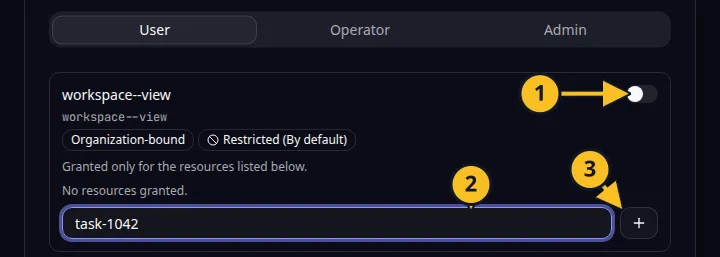
A permission limited to listed records: 1, switch; 2, Resource id field; 3, add button. -
Read the badge beside each permission to see why it is held.
Badge Meaning Granted You gave it to this person. By default Everyone in a default class holds it. See Set default permissions. Group: name The named group the person belongs to gives it. bundle It comes from a bundle of a group the person belongs to. -
Switch off a permission the person inherits by default, or through a group, to restrict it for them. It then shows Restricted. Switch it on again to give it back.
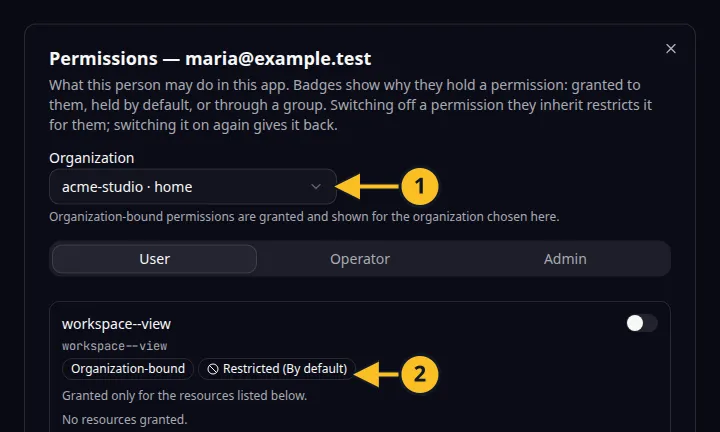
A restricted permission: 1, Organization select; 2, Restricted badge. -
For a permission marked Organization-bound, choose the Organization it applies to. The list holds the person’s organizations, home organization first.
Restricting a permission withholds every inherited form of it from that person, but does not remove permissions you granted to them directly for single records.
A group has the same dialog; see Give permissions to groups. The MCP tools grant and revoke the same permissions. Back to the section overview.
Application example
Category: Project and task management. Example: Task Grove, a task board for a small team. Give a member permission to update tasks, and restrict deleting tasks for one contractor.