Give permissions to groups

On this page
A group grants permissions to all of its members inside one organization. Use a group when several people need the same access, so you change it once.
-
Open the project, choose Users, pick Preview or Production and open the Groups tab.
-
In Organization, choose an organization. The groups you see and create belong to it.
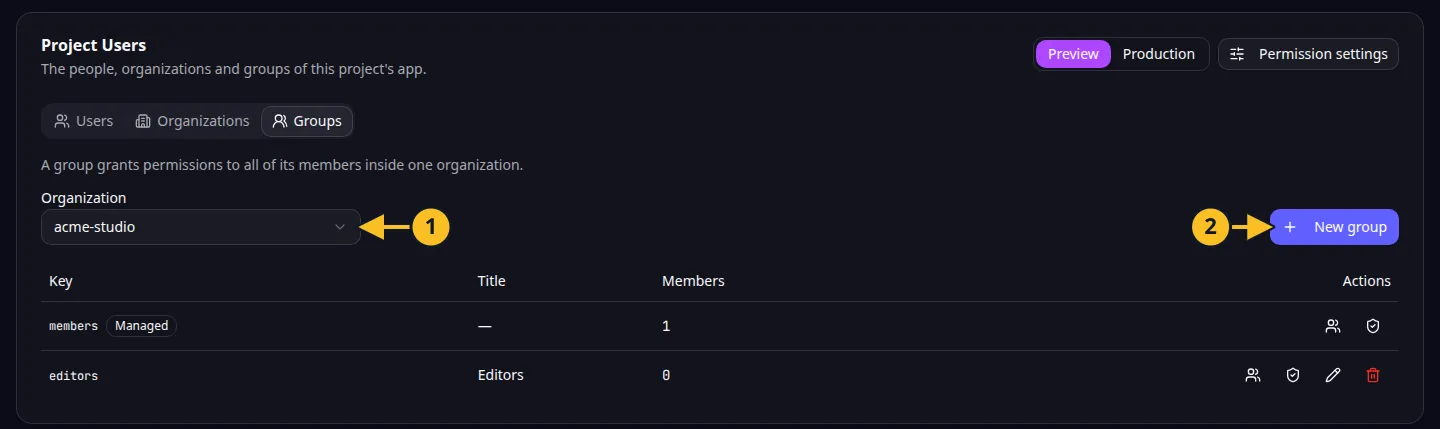
Groups tab: 1, Organization select; 2, New group. -
Choose New group. Enter a Key: letters, digits, dashes and underscores, starting with a letter or a digit. The key cannot be changed later. Add a Title if you like.
-
Under What the group grants, choose Add bundle. A bundle grants every permission of the areas you pick, or of all areas, plus the single permissions you add under “Plus these permissions”. Add more bundles if you need them, then choose Save.
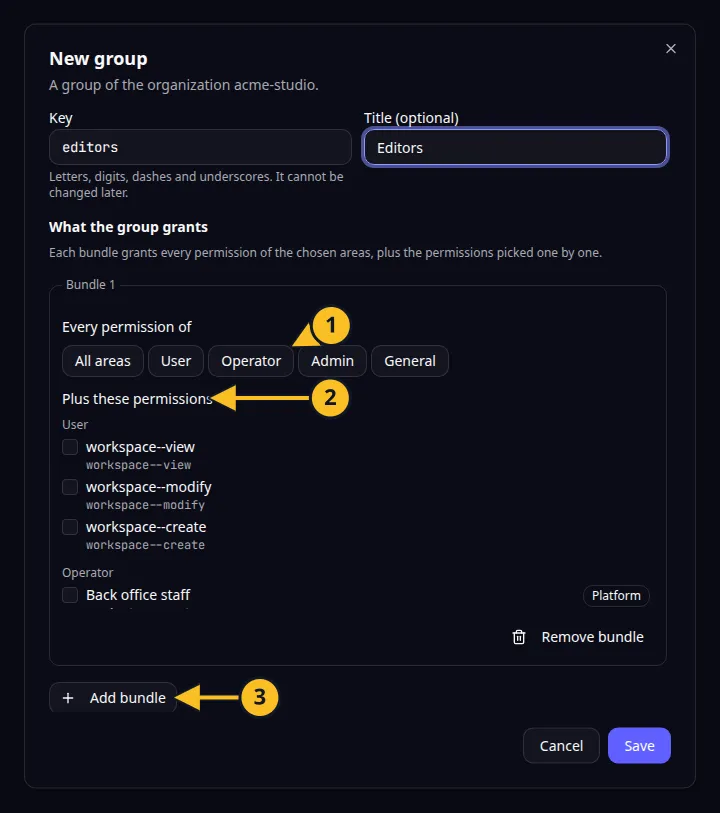
New group dialog: 1, areas of a bundle; 2, single permissions; 3, Add bundle. -
Choose Members on the group’s row. In Add a member, pick someone from the organization and choose Add. Only members of the organization can join its groups.
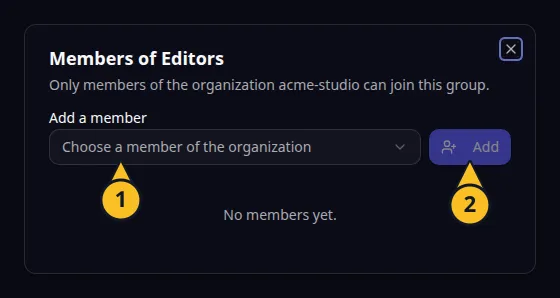
Members of a group: 1, Add a member; 2, Add. -
Choose Permissions to adjust the group like a person. Switching off a permission the group gets from its bundles restricts it for every member. See Grant and restrict permissions.
-
Use Edit to change the title or bundles, and Remove to delete a group. Removing a group removes the permissions it granted from its members.
The group named
membersis kept by the platform for your own team. You cannot edit or remove it, and its member list is read-only. Its permissions can still be changed. See Understand your team’s managed access.
A person’s table row lists the groups they belong to. For access that depends on who owns the organization rather than on a group, use default permissions. The MCP tools can create and change groups too. Back to the section overview.
Application example
Category: Project and task management. Example: Task Grove, a task board for a small team. Create a “managers” group that can manage projects, and add the team leads to it.